
Ask the next relevant question.
Show fields, require answers, or set values based on what someone enters. Build the behavior visually while keeping your form in Webflow.
WHY IT MATTERS
Don’t leave them
wondering if it arrived.
The on-page success message is a start. A confirmation email gives visitors a record of what they submitted and a place to find your next steps.
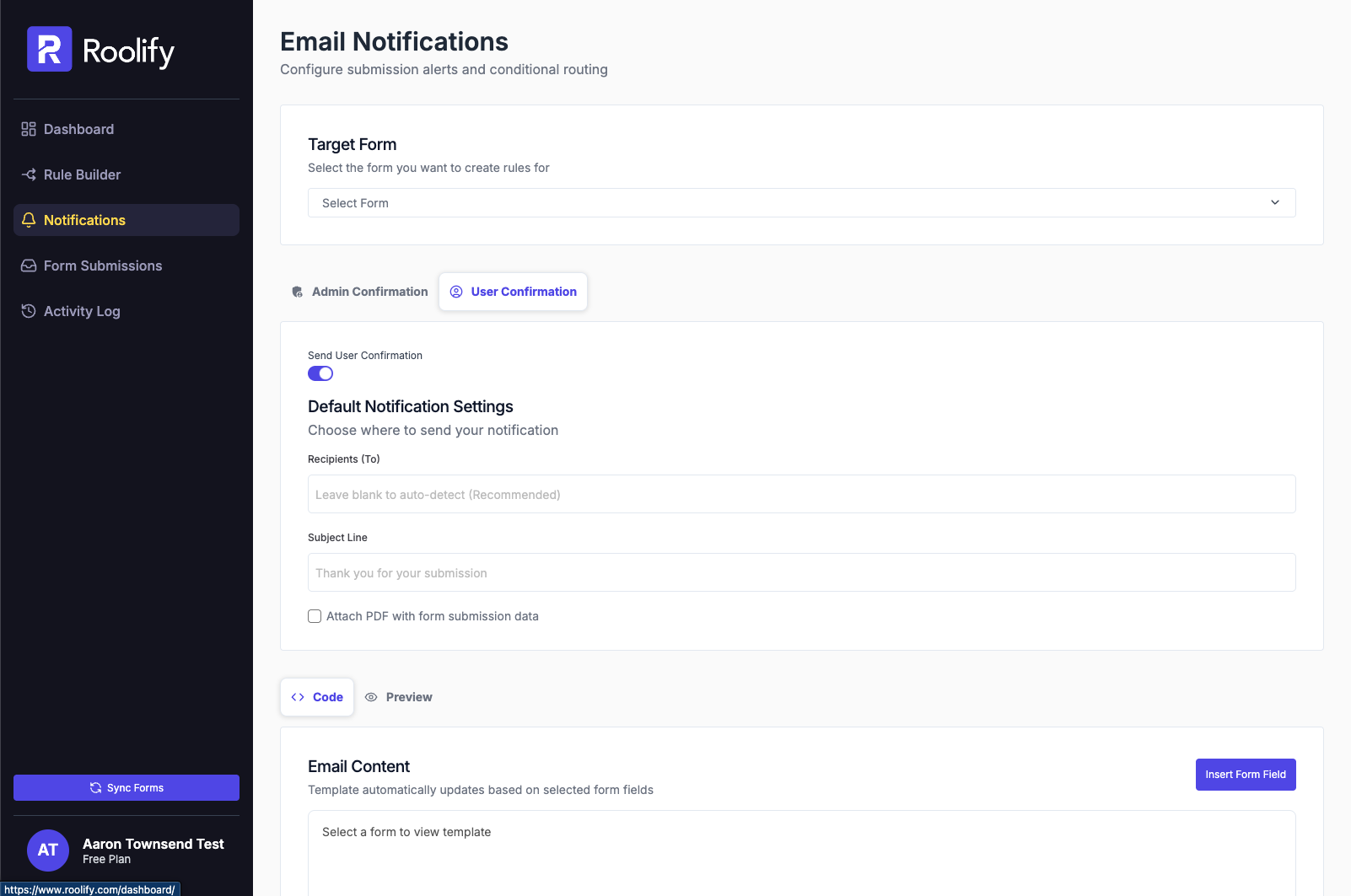
01
Reply to the submitter
Enable User Confirmation to send an email after a submission. The recipient is mapped to the form’s email field.
02
Write for your visitor
The user confirmation starts with the admin template. Edit it separately to make its layout and content useful to the person receiving it.
03
Include a record
Insert form fields into the template or attach a PDF summary so the visitor has a copy of their submission.
Answers, before you start
Dont see yours? Ask us
Are confirmations enabed by default?
No. Enable the User Confirmation toggle for the form.
Which email address receives the confirmation?
Roolify maps the recipient to the form’s email field. If there are multiple email fields, enter the field name of the one you want to use.
Can the user email differ from the admin email?
Yes. Open the User Confirmation tab to refine its layout and content separately.
Can I include a summary of the user's submission in their auto-reply?
Yes. You can insert form field variables directly into your auto-reply template to dynamically include the user's choices or responses as a confirmation record.
BUILT FOR YOUR NEXT FORM
Give it a real problem to solve.
Try your rules on a webflow.io site with the free plan. Move to a paid plan when you’re ready for a custom domain.
Try RoolifyHave a question? Get in touch. Compare plans and limits →