
"Newsletter;" not just "true"
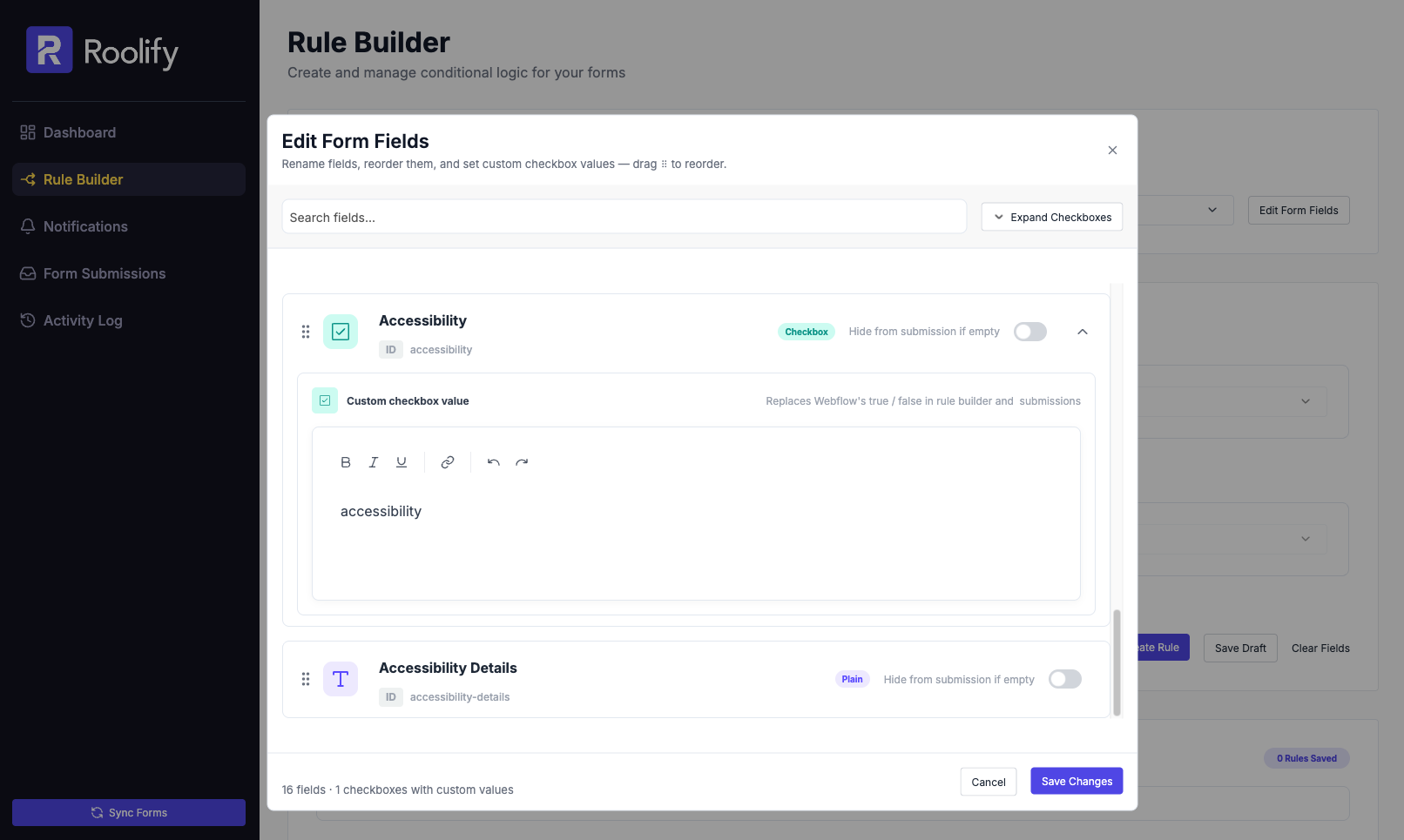
Give checkbox answers meaning in your submissions. Use the field label automatically, or set a custom value that makes sense to your team.
WHY IT MATTERS
Read the answer.
Skip the guesswork.
A true or false value tells you a box was checked. A descriptive value tells you what the person selected when you review the submission.
01
Start with the label
Roolify automatically extracts the checkbox field label and uses it as the submission value.
02
Make the value your own
Customize that value when your team needs a specific label in the submitted data
03
Organize the details
Edit field display names and reorder fields in Roolify to make submissions easier to work with
Answers, before you start
Dont see yours? Ask us
Do I have to set every checkbox value manually?
No. Roolify extracts the checkbox label automatically. You can override it with a custom value when needed
Where do custom checkbox values appear?
They change what appears for the checkbox in form submissions.
Does changing a display name rename my Webflow field?
No. Display names edited in Roolify do not change the display name in Webflow.
Will custom checkbox values affect how rules or conditional logic evaluate my form?
No. Conditional logic evaluates fields based on user interaction (such as whether a box is checked), while custom values only update how the final data is labeled when it reaches your submissions dashboard or notifications.
BUILT FOR YOUR NEXT FORM
Give it a real problem to solve.
Try your rules on a webflow.io site with the free plan. Move to a paid plan when you’re ready for a custom domain.
Try RoolifyHave a question? Get in touch. Compare plans and limits →